Last updated: 18 October 2026
You probably open WhatsApp dozens of times a day. Many people use only a small part of what it can do. Here are 10 genuinely useful features hiding in plain sight. No third-party app needed, no payment, no technical skill. Just features you already have.
Message yourself (your personal notepad)
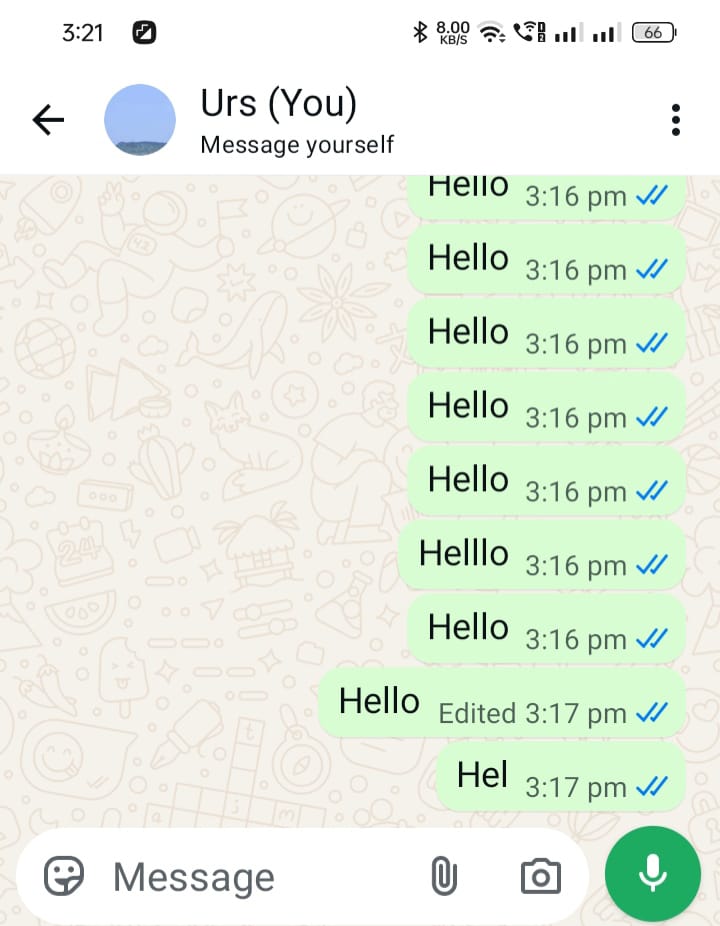
Open WhatsApp, search your own name in contacts, and start a chat with yourself. Shopping lists, links to read later, photos you need on your laptop. Send everything here.
It syncs across your phone and WhatsApp Web. It works as a quick notepad that you never lose, because it lives inside the app you already open all day.
Lock specific chats with your fingerprint or phone passcode
Some chats need extra privacy. You can protect one or two without locking the whole app.
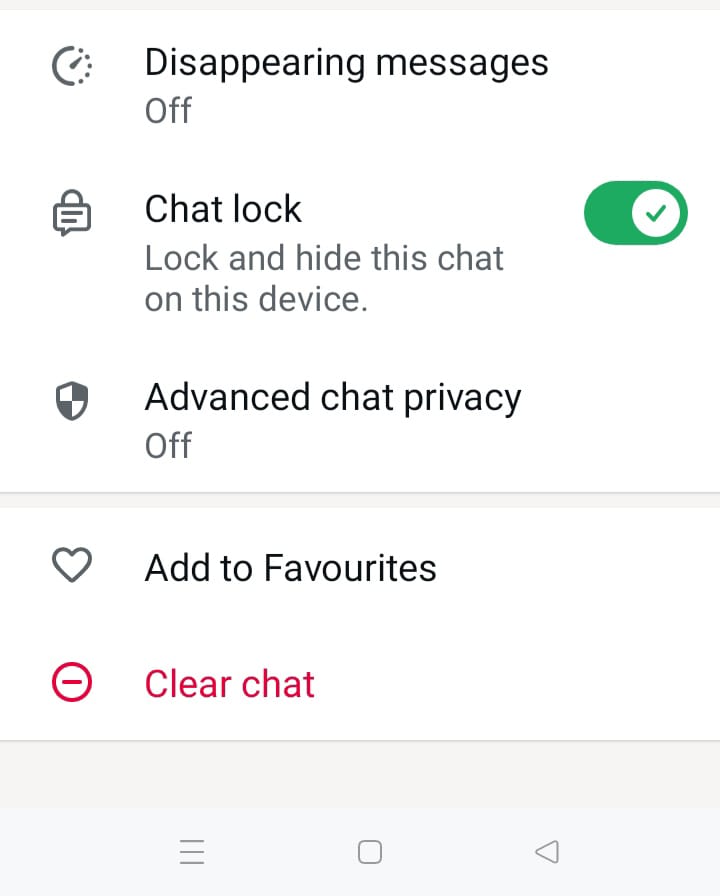
How: Open the chat, tap the contact name at the top, then Chat Lock, and turn it on. Now that chat sits in a locked folder and needs your fingerprint, face unlock or phone passcode to open. To find the folder, slowly pull down on your chat list.
Locked chats also hide their message contents in notifications. Simple and effective for the chats you want private.
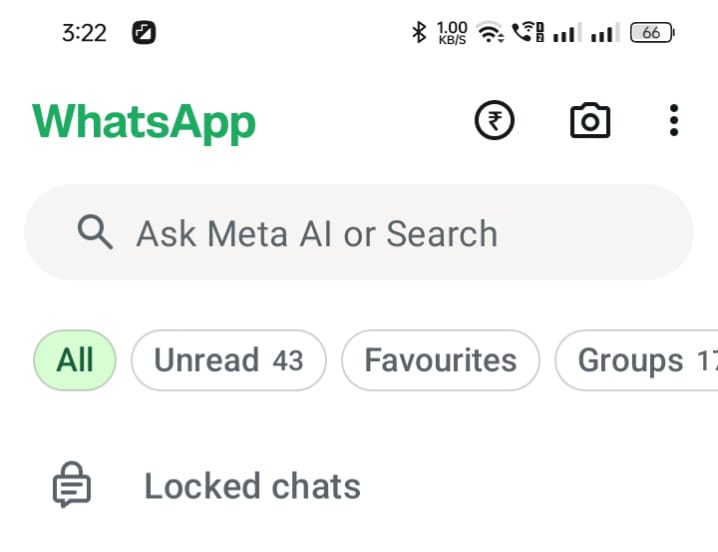
Want to hide the folder itself? Open the Locked Chats folder, go to Chat Lock settings, turn on Hide Locked Chats, and set a secret code. The folder disappears from your chat list completely. To open it later, just type your secret code in the WhatsApp search bar.
Send photos in HD quality
By default, WhatsApp compresses every photo you send. The receiver gets a softer version. Fine for casual sharing, but poor for documents, certificates, or photos you want printed.
How: When sending a photo, tap the HD button at the top before pressing send. The photo goes in at a higher resolution, with an HD label on it.
For important documents, choose Document in the attach menu instead of Gallery. No compression, original quality, every pixel intact.
Tired of tapping HD every time? Go to Settings, then Storage and Data, then Media Upload Quality, and select HD Quality. Your photos and videos will now send in HD automatically.
Edit a message after sending
Sent “I will come at 5” but meant 6? You do not need to delete and retype.
How: Long-press your sent message, tap Edit, fix it, and send. You get 15 minutes after sending to make the edit.
The receiver sees a small “edited” label. Much cleaner than the old delete-and-resend dance, especially in groups where everyone already saw the mistake.
Pin the chats that matter most
Tired of scrolling to find your family group or your boss? Pin them.
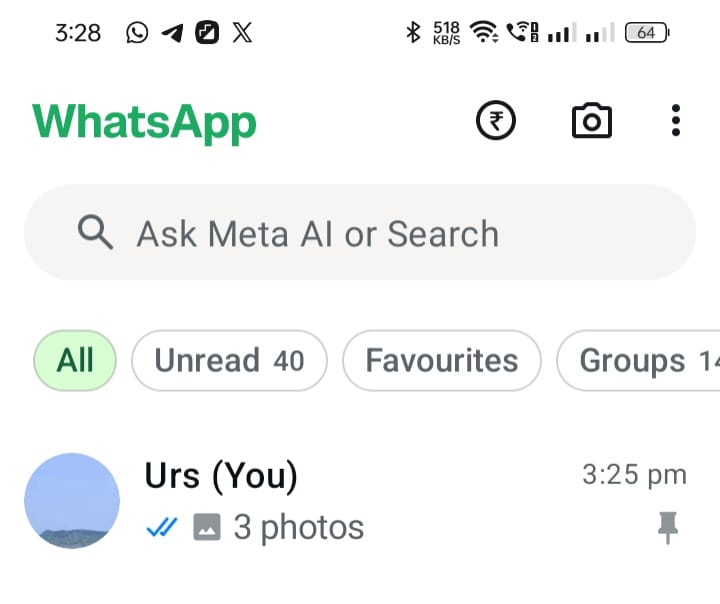
How: Long-press any chat and tap the pin icon. It stays at the top above all new messages until you unpin it.
WhatsApp has long capped pinned chats at 3, and some newer versions may allow more. A practical setup: family group, work group, and your own self-chat from feature #1.
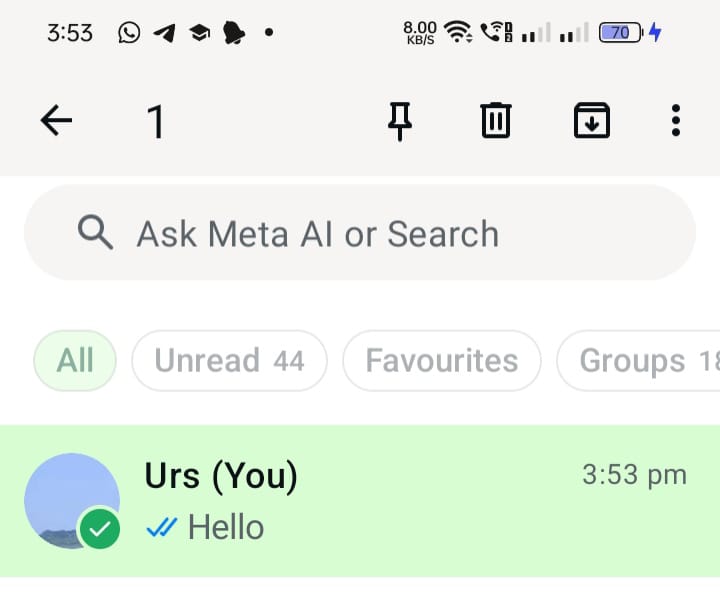
You can also pin important messages inside a chat. Long-press any message, tap Pin, and choose 24 hours, 7 days, or 30 days. It stays as a banner at the top of that chat so nobody misses it.
Format text: bold, italic, strikethrough
Make your messages clearer with simple formatting:
Bold: *text* (asterisks around the words)
Italic: _text_ (underscores around the words)
Strikethrough: ~text~ (tildes around the words)
Monospace: “`text“` (triple backticks, good for code snippets)
Newer versions also support quotes (> text) and lists (- item). Try it once and you may start using bold for important dates and amounts. It takes two seconds and makes long messages far easier to read.
Star important messages (your WhatsApp bookmarks)
Someone sent an address, an account number, or an important date in a busy group. Two weeks later, good luck finding it by scrolling.
How: Long-press the message and tap the star icon. To find it later, tap the contact or group name, then Starred Messages. Everything important, in one place, no scrolling through months of chat.
Disappearing messages for temporary information
Sharing a one-time address or a temporary link? Do not let it sit in chat history forever.
How: Open the chat, tap the contact name, then Disappearing Messages, and choose 24 hours, 7 days, or 90 days. Messages delete themselves after that time.
Honest warning: the other person can still take a screenshot, and in a one-to-one chat either person can switch the setting off. This is for casual privacy, not high security. Do not share anything here that you would not share otherwise.
If someone shares something important inside a disappearing chat, long-press that message and tap Keep. It stays even after the timer ends.
Use WhatsApp on two phones (companion mode)
Got a second phone or tablet? You can link it to your account without using WhatsApp Web in a browser.
How: On the second device, install WhatsApp and choose “Link as companion device.” Then scan the QR code from your main phone’s Linked Devices screen.
You can link up to 4 devices to one account. Linked phones work independently, so messages keep arriving even if your main phone is switched off. Useful for people who carry a work phone and a personal phone, or who want WhatsApp on a tablet.
Create a poll instead of 50 messages
“Where should we go for dinner?” in a group means 40 messages of chaos. Use a poll.
How: In any group or chat, tap attach (+) and choose Poll. Add the question and the options. Everyone votes with one tap and results show live.
You can add up to 12 options, and switch “Allow multiple answers” on or off depending on the question. Works for family decisions, office lunch, trip planning. Anywhere a group argues in circles, a poll can end it in minutes.
Bonus: check when your message was actually read
Everyone knows the blue ticks. But long-press any sent message and tap the info icon. You will see when it was delivered and when each person read it.
In groups, it shows read time per person. It can settle an “I didn’t see your message” argument with facts. If the other person has turned off read receipts, you may not see a read time.
Do not see a feature? Update first
WhatsApp adds features gradually, and older versions miss them. If any feature above is missing on your phone, update WhatsApp from the Play Store or App Store first. Many “this feature does not exist” complaints are fixed by an update.
Also note: some features roll out in phases, so a friend may get something a week before you do. If your app is updated and the feature still is not there, wait a few days and check again.
Hidden WhatsApp features: frequently asked questions
Are these features free?
Yes. They are built into WhatsApp and do not need an extra app or payment. Just update WhatsApp to the latest version if you do not see a feature.
Does chat lock hide chats on linked devices too?
Chat lock was built for your phone. WhatsApp has said it planned to extend locking to linked devices, so check how it behaves on your linked devices before you rely on it.
Can the other person tell if I edited a message?
They see a small “edited” tag on the message, but not what the original said. Disappearing messages work differently: the chat runs on a timer, and in a one-to-one chat either person can turn it off.
Do polls work in all chats?
Polls work in group chats and in one-to-one chats. The options and votes are visible to the people in that chat.
Will HD photos use more data?
Yes, noticeably more. Use HD only on WiFi or when quality truly matters. For casual photos, the default compressed version is fine and saves data.
Can I lock chats without a fingerprint sensor?
Chat lock uses your phone’s own screen lock, which can be a fingerprint, face unlock, or a password or PIN. Set a screen lock on your phone first.
Do disappearing messages delete photos and videos too?
Yes, messages and media sent in the chat disappear from the chat when the timer ends. But the other person can screenshot or save something before then, and a reply that quotes a message can keep the quoted text.
Start with three: message yourself, pin your important chats, and star one important message today. Once those become habits, come back for the rest.
- Related Articles
- Google Gemini Live Camera: What Is It and What Can You Do With It?